
From developer art to good looking apps - an AI design skill for .NET MAUI
I have a confession to make. Hand me a design and I will happily implement it in .NET MAUI. But ask me to come up with the design myself and things get dicey rather quickly. Since this post is part of MAUI UI July, I thought instead of implementing yet another control, I would go after the root of the problem this year. And teach my AI assistant to be the designer I never was.
If you scroll through my older posts you will find the evidence. The layouts were fine, the functionality was there, but the colouring… My process for picking colours was scrolling through the Colors class and choosing whatever name sounded nice. CornflowerBlue has carried more of my side projects than I would like to admit. And when I felt really fancy, I kept the template purple and called it branding. The result is what a designer friend of mine once lovingly called developer art.
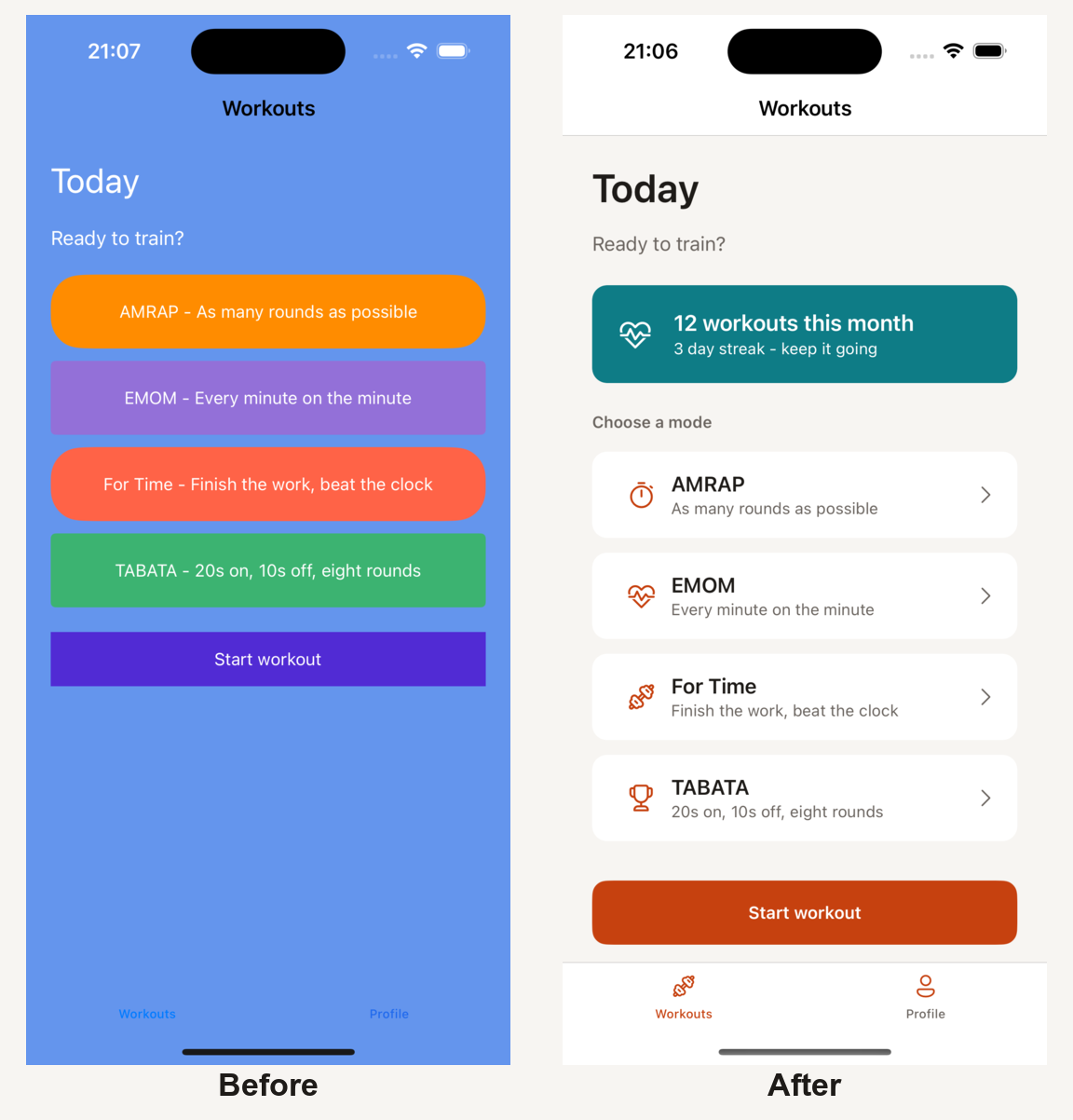
Now here is the thing: the large language models we all have sitting in our editors these days actually know design. Colour theory, contrast rules, typography - it is all in there. If you ask nicely, you get a decent palette out of them. But I found myself typing the same three paragraphs of instructions into every new chat. And every chat gave me a slightly different answer. One day pure black backgrounds, the next day pastel everything. What I wanted was my design opinions, written down once, applied every time.
That is exactly what a skill is.
One skill, two assistants
A skill is a folder with a SKILL.md file - markdown with a bit of YAML frontmatter that tells the agent what the skill does and when to use it. The agent only loads the file into context when it decides the skill is relevant. What makes this interesting right now: the Agent Skills format started out in the Claude world, but GitHub Copilot adopted it as well. So the same file works in Claude Code, in VS Code with Copilot, in the Copilot CLI and even in the Copilot coding agent on GitHub.
The only difference is where the file lives:
- Claude Code:
.claude/skills/maui-app-design/SKILL.md - GitHub Copilot:
.github/skills/maui-app-design/SKILL.md
I keep one copy and symlink the other folder, so the two can never drift apart.
The frontmatter is short and sweet:
---
name: maui-app-design
description: >
  Create the initial UI design for a .NET MAUI app. Produces a colour palette
  based on colour theory, sets up an icon font and generates Colors.xaml,
  Styles.xaml and the first page scaffolds.
model: haiku
---
More on that model: haiku line in a bit - it is my favourite part.
Writing down the colour theory
The heart of the skill is a small dose of colour theory, written as rules the model can follow step by step. I will not repeat the whole file here (you can find the complete skill on GitHub), but these are the rules that made the biggest difference for my apps:
The 60-30-10 rule. Roughly 60% of a screen should be neutral background and surfaces, 30% your primary colour, and only 10% the accent. The accent is the loudest colour on the screen - it marks the one action that matters. My old UIs happily used three loud colours at 33% each, which is why they screamed at you.
Pick colours on the wheel, not from a list. The skill derives a harmony scheme from the mood of the app: analogous (neighbouring hues, ±30°) for calm and professional apps, triadic (±120°) for playful ones, complementary (+180°) when you want energy - but then the complement is only allowed as the accent. This alone replaces the CornflowerBlue lottery.
No pure black, no pure white. #000000 on #FFFFFF looks harsh and cheap. The skill uses off-blacks and off-whites and tints the neutrals a few percent towards the primary hue, which makes the whole app feel like it belongs together.
Dark mode is not just inverted. Saturated colours vibrate on dark backgrounds, so the dark theme variants get their lightness raised and their saturation lowered. I never knew this before a designer told me, and my dark themes never made sense before either.
Contrast is not negotiable. Every text and background pair has to pass WCAG AA, so 4.5:1 for body text. The skill computes the ratios and adjusts the lightness until they pass. This is the kind of tedious checking that models are surprisingly happy to do and humans (well, me) surprisingly happy to skip.
The output of this step is a palette table with contrast ratios and a ready to use Resources/Styles/Colors.xaml. All colours end up as resources, and the styles reference them via AppThemeBinding - no literal hex values sprinkled over the pages.
Icons from a font
The second half of the skill covers icons. I have been a fan of icon fonts since the Xamarin days - one file, every size, tintable with a simple colour property. Back then I used Font Awesome, these days the skill sets up FluentUI System Icons, which fits the platform look rather nicely.
Registering the font is the usual one liner in MauiProgram.cs:
fonts.AddFont("FluentSystemIcons-Regular.ttf", "FluentIcons");
And the glyphs go into a static class, so no magic strings in the XAML:
public static class IconFont
{
    public const string Home = "\uE9A9"; // code from FluentSystemIcons-Regular.json
    public const string Settings = "\uEB44"; // never let the model guess these
}
One rule in the skill turned out to be essential: never guess glyph code points. Ask a model for the unicode value of the settings icon and it will confidently make one up - and you end up with a beautiful row of □ □ □ in your tab bar. Ask me how I know. The skill instructs the model to look every code up in the FluentSystemIcons-Regular.json mapping file that ships next to the font, and to leave a TODO if it cannot verify one.
The skill also carries a few small opinions: tab bar icons via FontImageSource at size 24, inline icons at 20, and pick either the regular or the filled variant - mixing both on one screen looks broken.
Why Haiku?
Now to that model: haiku line in the frontmatter. In Claude Code, a skill can pin the model it runs on. And this is the part I find genuinely neat: because the skill already contains all the thinking - the harmony rules, the contrast thresholds, the checklist - there is nothing left that needs a big model to reason about. Executing a well written skill is mostly following instructions, and that is exactly what the small, fast and cheap models are good at.
So the initial design of an app now runs on Haiku, comes back in seconds, and costs next to nothing. If you use the skill through Copilot the model field is simply ignored, since it is not part of the shared standard (yet?) - Copilot just runs it on whatever model you have selected.
Taking it for a spin
With the skill in place, starting a new app looks like this: I type /maui-app-design in Claude Code (or ask Copilot in agent mode for an initial design), answer four short questions - what does the app do, two mood words, brand colour if any, light/dark or both - and get back a palette table with contrast ratios, Colors.xaml, Styles.xaml, the registered icon font and scaffolded pages that already look like someone with opinions made them.
The sample I used to shake all this out is a small workout app - a start page with the usual AMRAP/EMOM/TABATA suspects - which picks up where my last MAUI UI July post left off. That one was built with MAUI Reactor, the code-first C# flavour of MAUI, and so is this one. Reactor doesn’t write its pages in XAML, but it happily consumes XAML resource dictionaries - so the Colors.xaml and Styles.xaml the skill spits out drop straight in and the C# pages just reference them. The skill stays framework-agnostic, and I get to keep writing my UI in C#. I gave it the mood words energetic and friendly, so it went for a warm orange with a complementary teal accent:
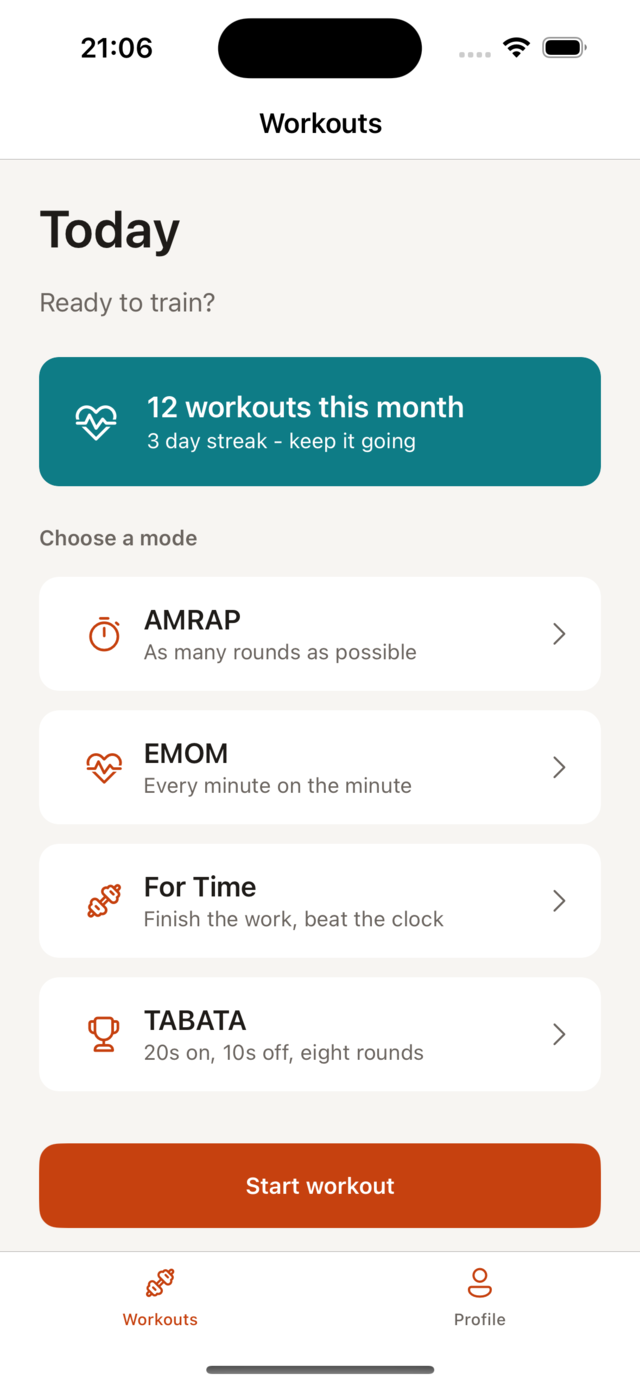
Is it going to put designers out of work? Absolutely not - a good designer would find plenty to improve here. But it reliably lifts my apps from developer art to something I am not embarrassed to show in a demo. And because the rules are written down in a file that lives in the repo, every team member (and every AI assistant) applies the same design language.
You can find the complete skill and the sample app on GitHub - feel free to steal it and swap in your own opinions. The developer-art version lives on the before branch if you want to see the full contrast. And be sure to check out the other MAUI UI July posts for more .NET MAUI eye candy.
HTH